Use our free AI photo editor to change your photos with a few words. No sign-up required.
Free to use
Use multiple images
No sign-up
All photos share one prompt. Only the first photo can be painted. Credits per result: 1K = 1, 2K = 2, 4K = 3. Daily free credits are used first.
·
Try an edit
JPG, PNG or WebP · Up to 10 photos · 50 MB each. Uploads and prompts are sent for cloud processing when you edit. Privacy policy
See what you can change with AI
See what this AI photo editor can do with a photo and a simple instruction.
01
Change a photo background
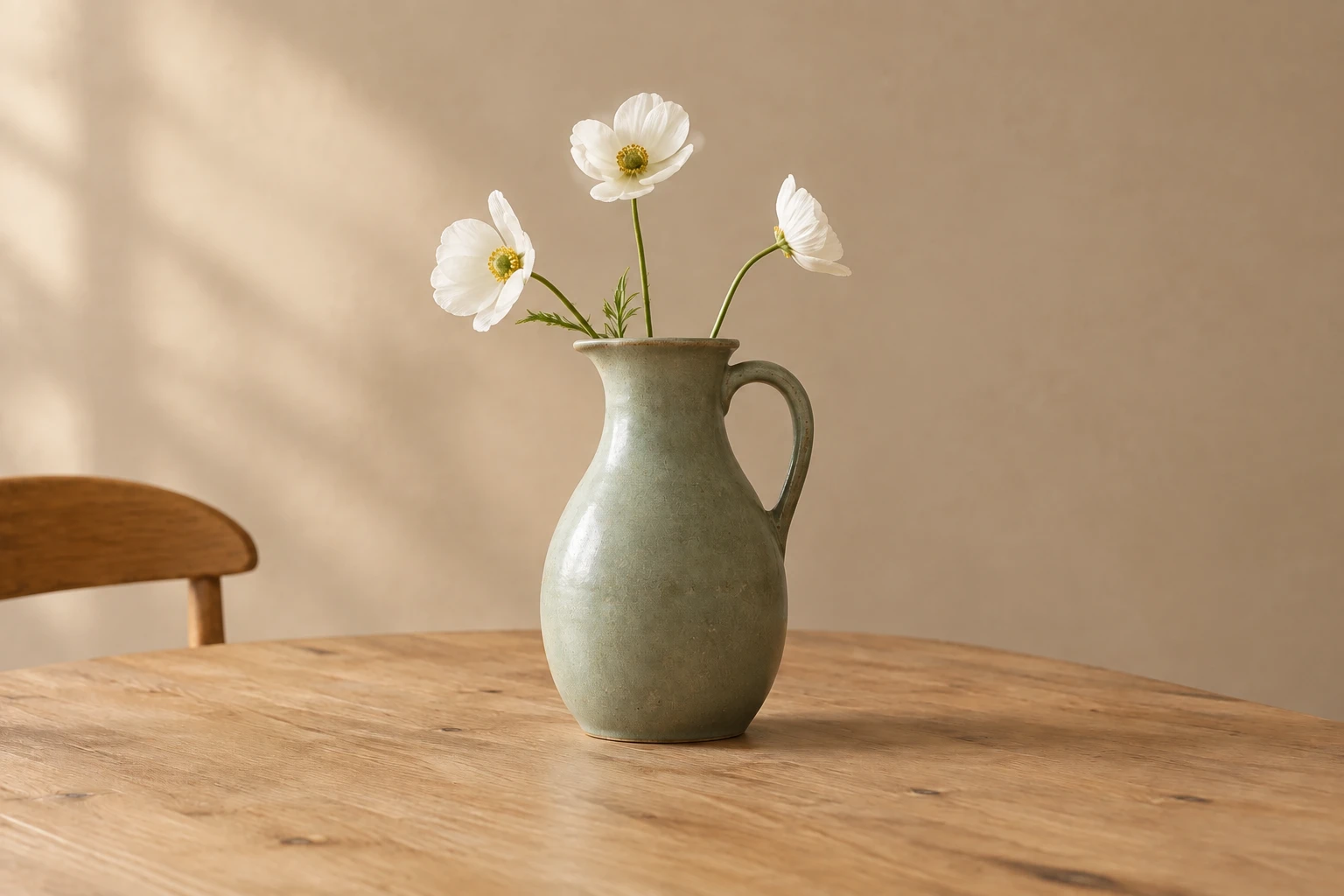
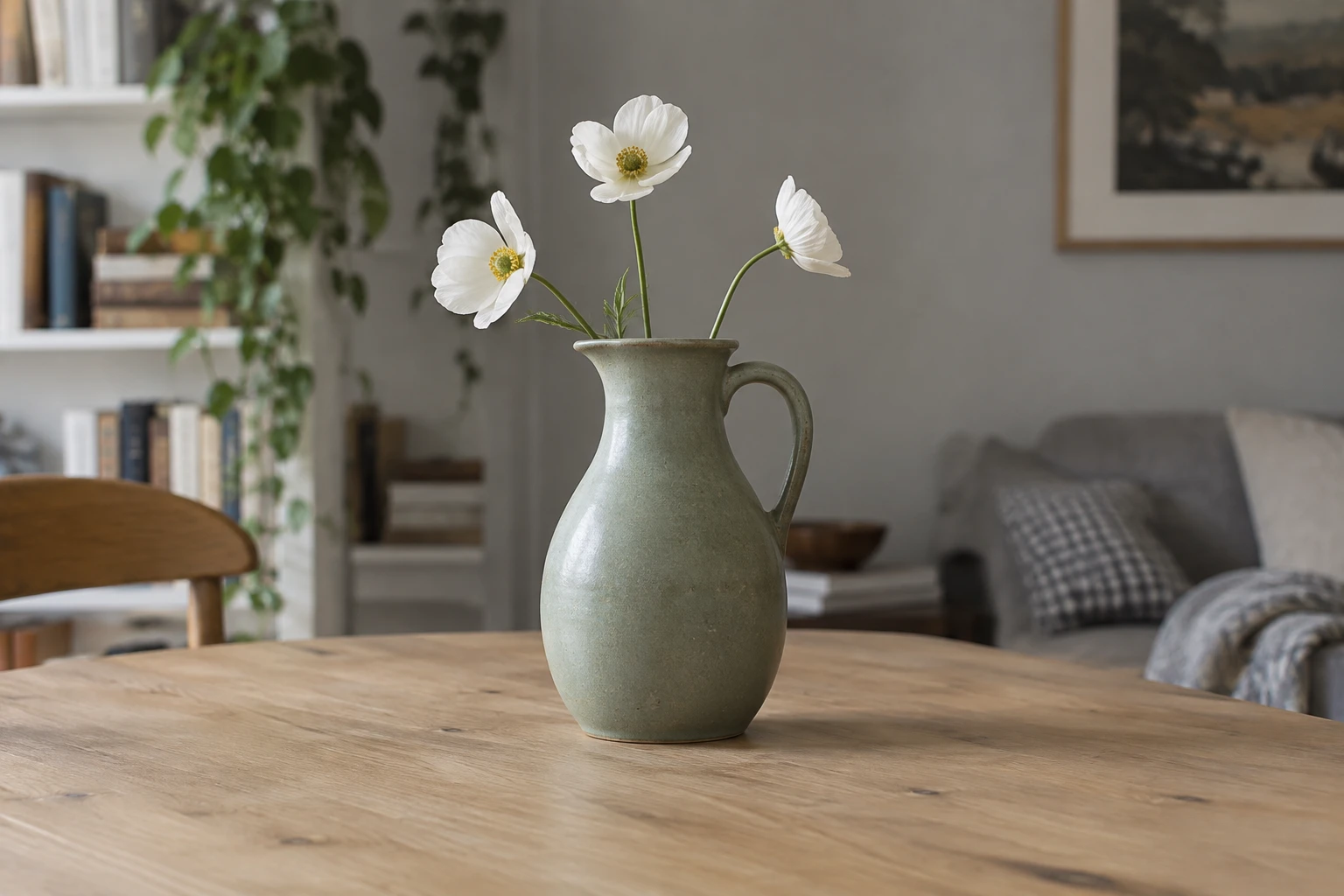
Use the AI photo editor to give a product a simpler setting. Here, a busy room becomes a warm studio backdrop.
The prompt
Replace the background with a warm beige studio wall. Keep the green vase, white flowers, wooden table, camera angle and framing unchanged.
OriginalEdited
02
Remove unwanted objects
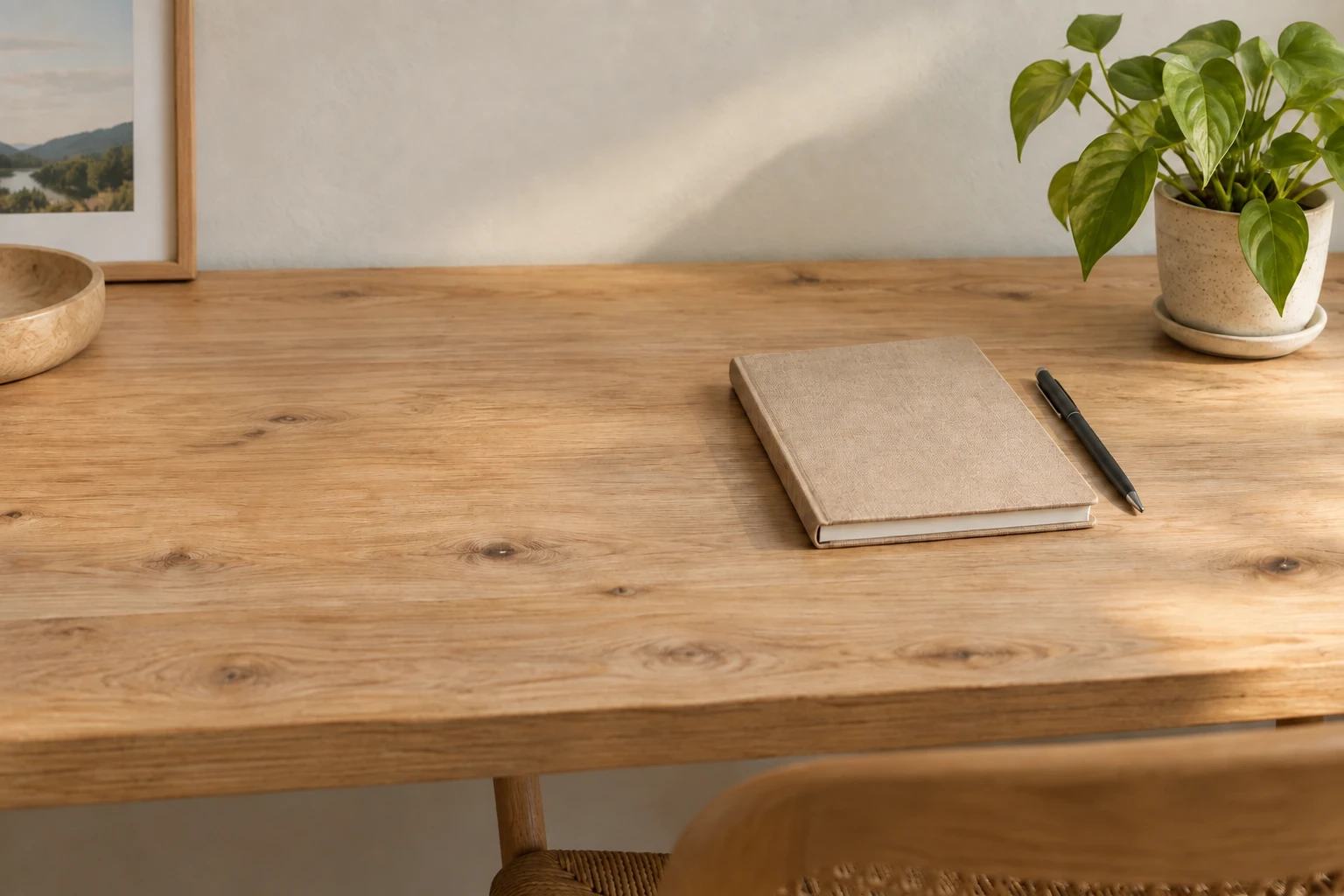
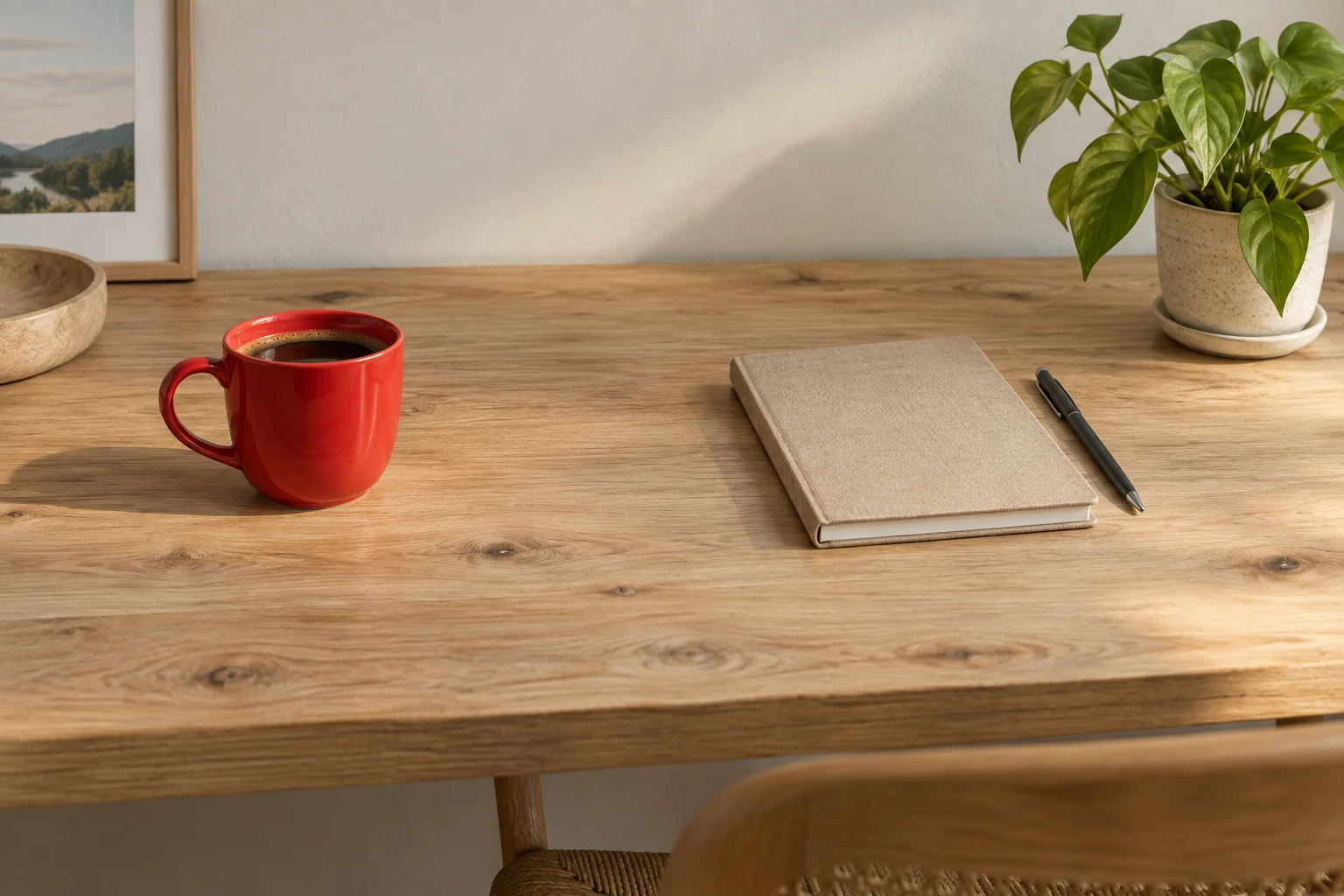
Remove distractions with the AI photo editor. Here, the red cup is removed from the desk.
The prompt
Remove the red coffee cup and its shadow from the left side of the desk. Fill the space naturally with matching wood grain. Keep the notebook, pen, plant, background and composition unchanged.
OriginalEdited
03
Soften the lighting
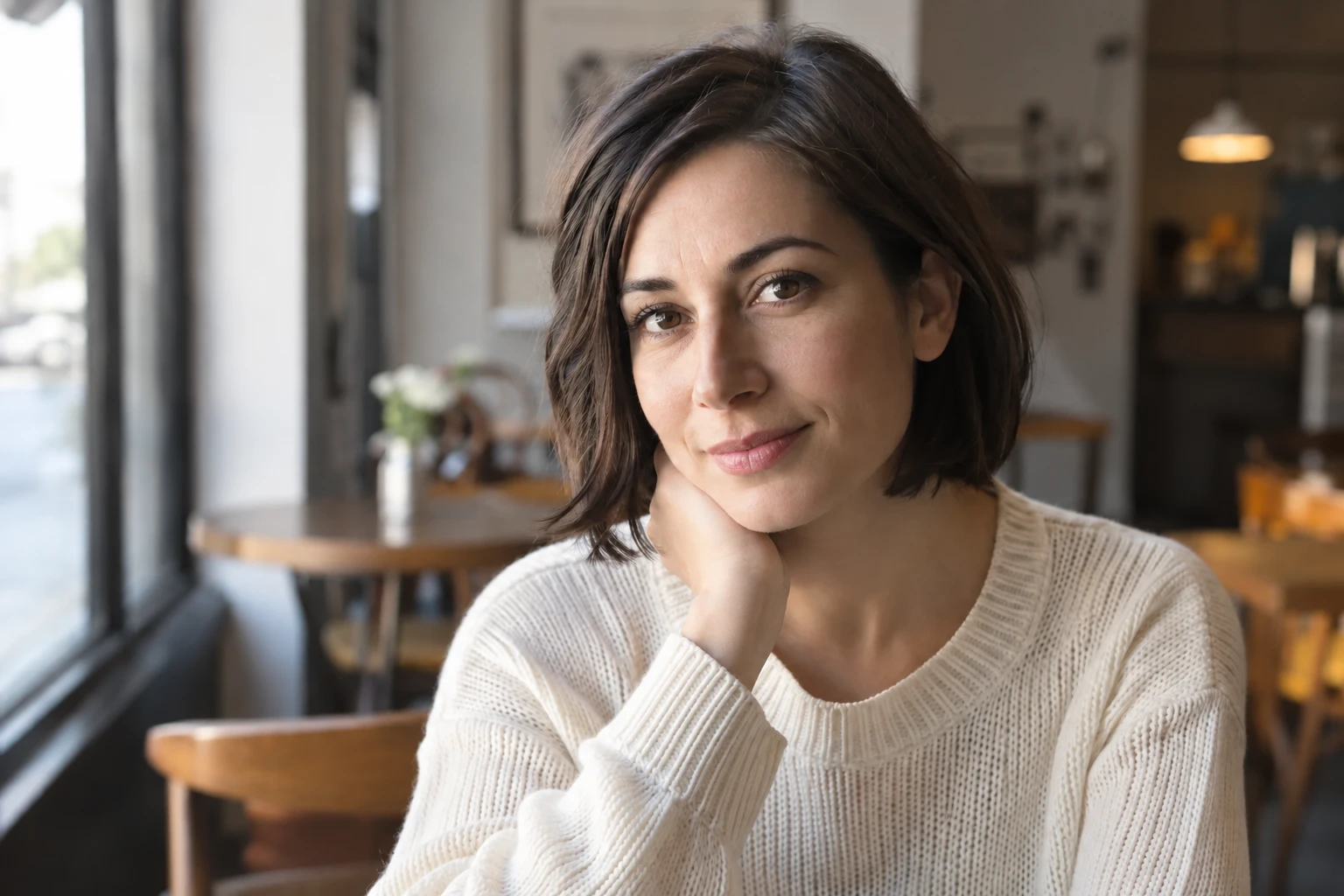
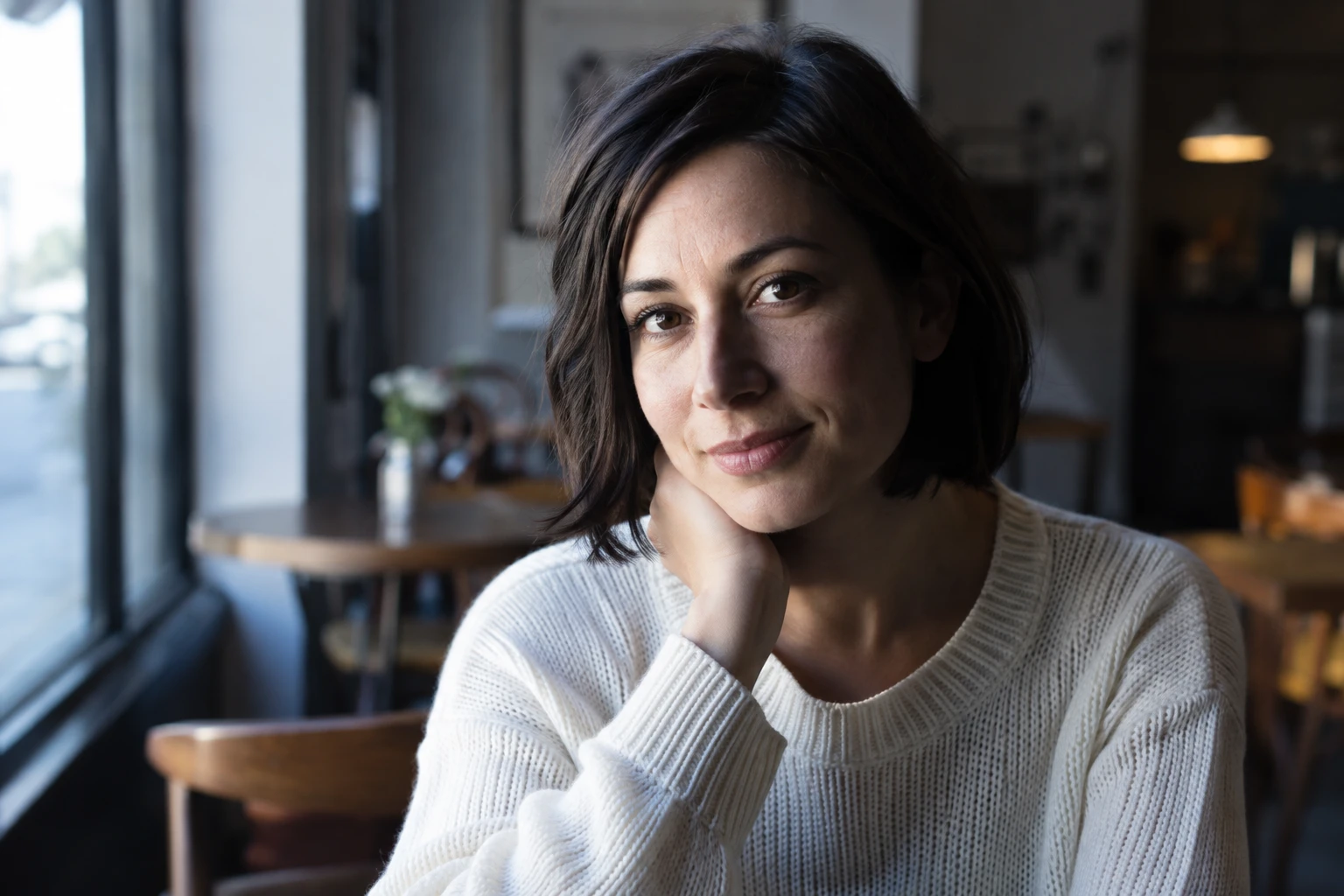
Ask the AI photo editor for softer light. Here, cool side lighting becomes softer and warmer.
The prompt
Make the portrait lighting softer and slightly warmer. Gently lift the dark facial shadows. Keep the person’s facial features, hairstyle, skin texture, clothing, background and composition unchanged.
OriginalEdited
AI-generated source images, edited with this AI photo editor. These are example results; your results may vary.
How to use the AI photo editor
Make a small fix or explore a different look.
1
Add your photos
Add JPG, PNG or WebP files to the AI photo editor. Upload up to 10 photos, each up to 50 MB.
2
Choose what changes
Give the AI photo editor one instruction for all your photos. You can paint an area on the first photo; the others are references.
3
Edit and download
The AI photo editor uses your photos together to create one result. Compare it with the first photo and download.
AI photo editor prompts you can try
Use this free AI photo editor to make changes with a text prompt. Name what to change, describe the result, and say what to keep.
01
Change a photo background
Replace the background with a warm beige studio wall. Keep the green vase, white flowers, wooden table, camera angle and framing unchanged.
02
Remove unwanted objects
Remove the red coffee cup and its shadow from the left side of the desk. Fill the space naturally with matching wood grain. Keep the notebook, pen, plant, background and composition unchanged.
03
Soften the lighting
Make the portrait lighting softer and slightly warmer. Gently lift the dark facial shadows. Keep the person’s facial features, hairstyle, skin texture, clothing, background and composition unchanged.
04
Clean up a product photo
Simplify the busy background. Preserve the product details and natural shadows.
Give the AI photo editor a specific instruction: “Remove the cup on the left” is clearer than “Make this better.” Start with one change and check the result.
Adapt these prompts to your photo, then try them in the AI photo editor above.
AI photo editor FAQs
Can I use the AI photo editor without signing up?
Yes. Upload, edit and download in your browser without an account or login. Your available free edits appear in the editor.
What are the free limits?
You can use up to 5 free edits a day, shared with our cloud unblur tool. The allowance resets at 00:00 UTC. Device, network and service limits may reduce the free edits available. Each generated result costs 1 credit; adding reference photos does not increase the cost. Free credits are used first; if you are signed in, your account credits cover the rest. Check the cost shown before you edit.
Can the AI photo editor use multiple photos together?
Yes. Upload up to 10 photos and write one prompt. All photos are sent together to create one result. The first photo can have a painted mask; the other photos serve as references. Each generation costs 1 credit, using free credits first.
Do I need to paint a mask?
No. You can edit with just a text prompt. To guide a local change, paint the area on the first photo. Other photos are references and cannot have masks. Selecting a preview does not change which photo is first. AI may also change nearby details, so compare the result with the original. Refreshing the page clears edits you have not submitted.
What files does the AI photo editor support?
Upload JPG, PNG or WebP files, up to 50 MB and 100 megapixels each. Inputs are resized to a maximum edge of 2048 pixels. Results are PNG files in a standard size close to the first photo’s aspect ratio; original pixel dimensions are not guaranteed.
How are uploaded photos processed?
When you choose Edit photo, your photos, shared prompt and optional first-photo mask are uploaded and sent to a cloud service. Inputs, tasks and results are stored for processing and downloads. See the privacy policy for details.
What if the AI photo editor fails or loses connection?
If an edit fails, times out, or its result cannot be confirmed, it is marked as failed and the free or account credits it used are returned. If your browser loses connection, choose Refresh status to check the submitted edit. Failed edits are not automatically submitted again. You can start a new edit.
Try the free AI photo editor
Upload, edit and download with the AI photo editor. No account or app needed. Check your free edits, then describe the change you want.
Just want to make a blurry photo clearer? Try our image unblur tool.