Restore old photos online. Our photo restoration AI repairs scratches, creases, stains and fading, and is built to keep faces the same. Turn on Colorize to add natural color.
Free daily credits
No sign-up needed
Optional colorize
Preview & Compare
Example
BeforeAfter
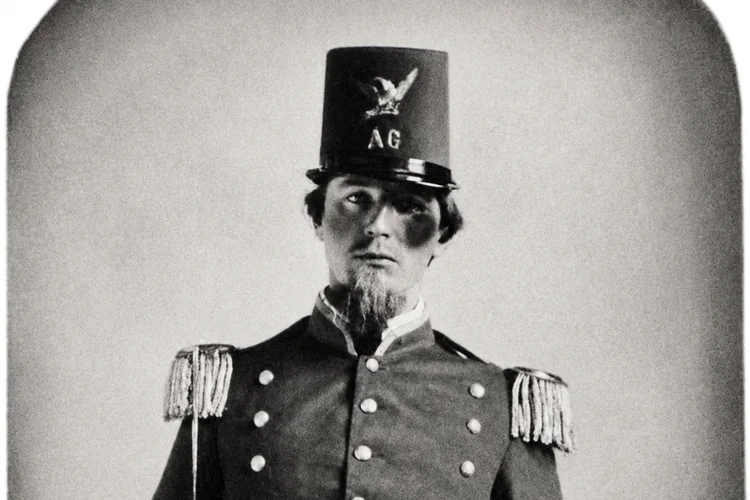
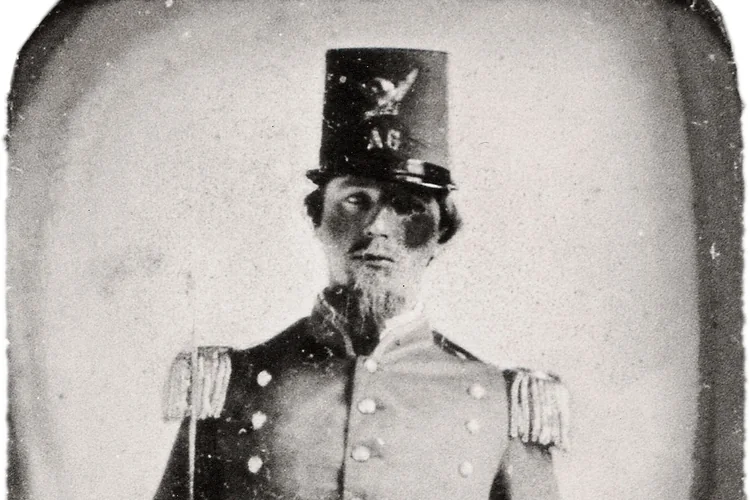
Drag the slider to see a real result: an 1860s portrait with spots and fading, restored.
Enhancement mode
Upload your image
Max 50MB
Cloud AIUploaded for enhancement
1K / 2K / 4K1 / 2 / 3 credits with UModel
No sign-inTry UModel directly
Real photo restoration results
These are real results, not mockups. We ran each old photo through photo restoration once. Then we compared every face, word and detail with the original.
01
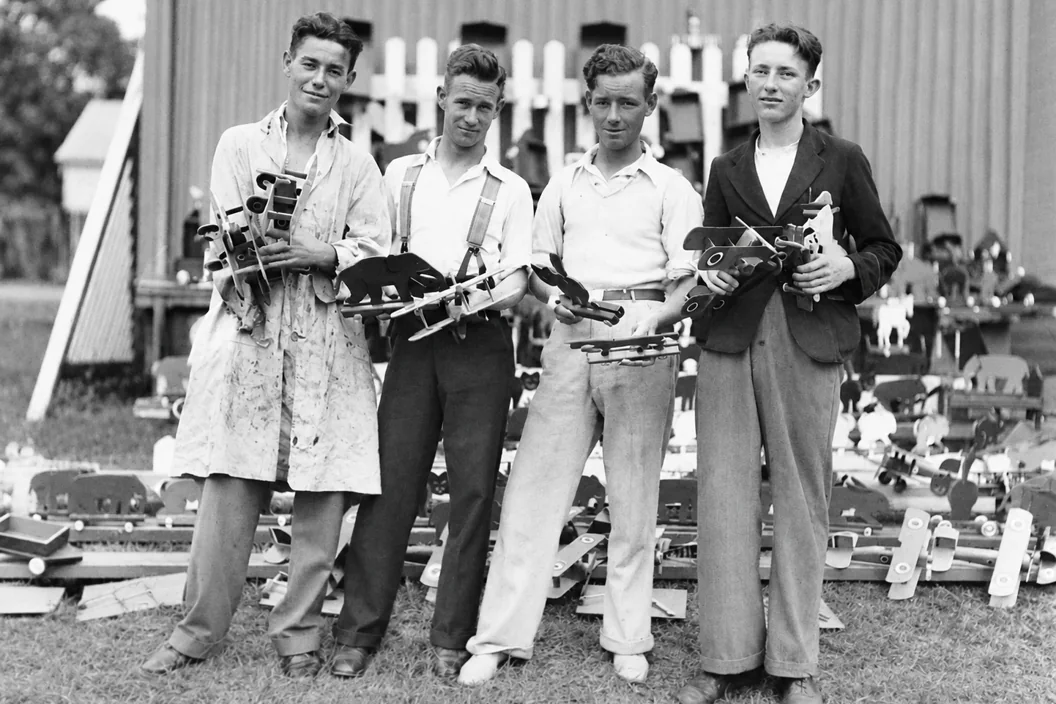
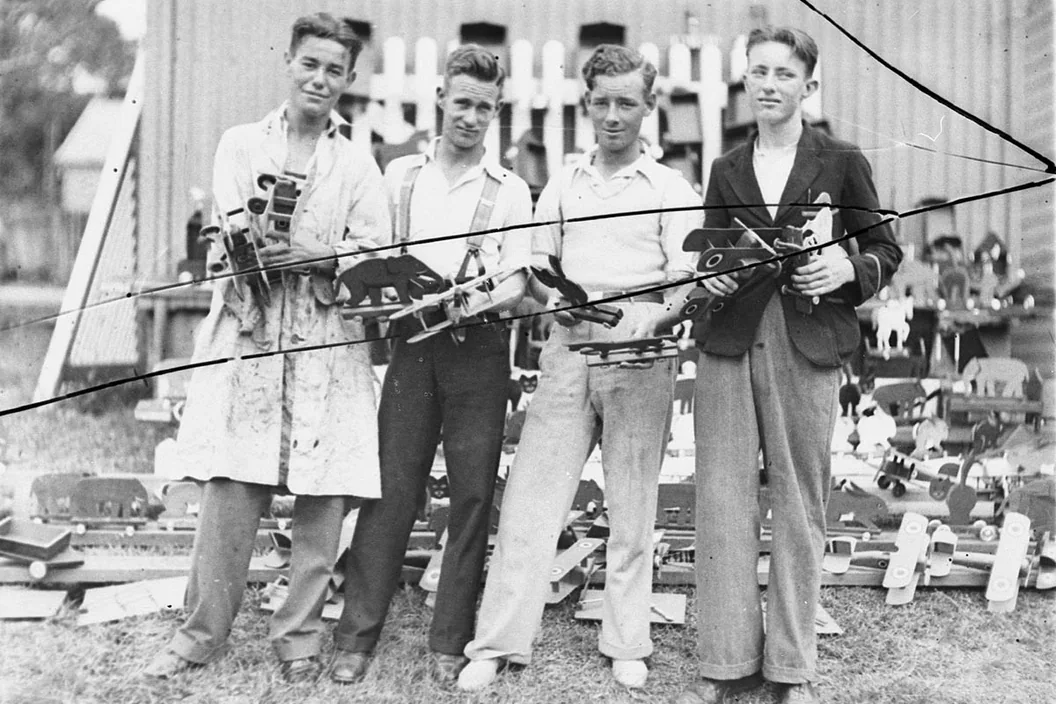
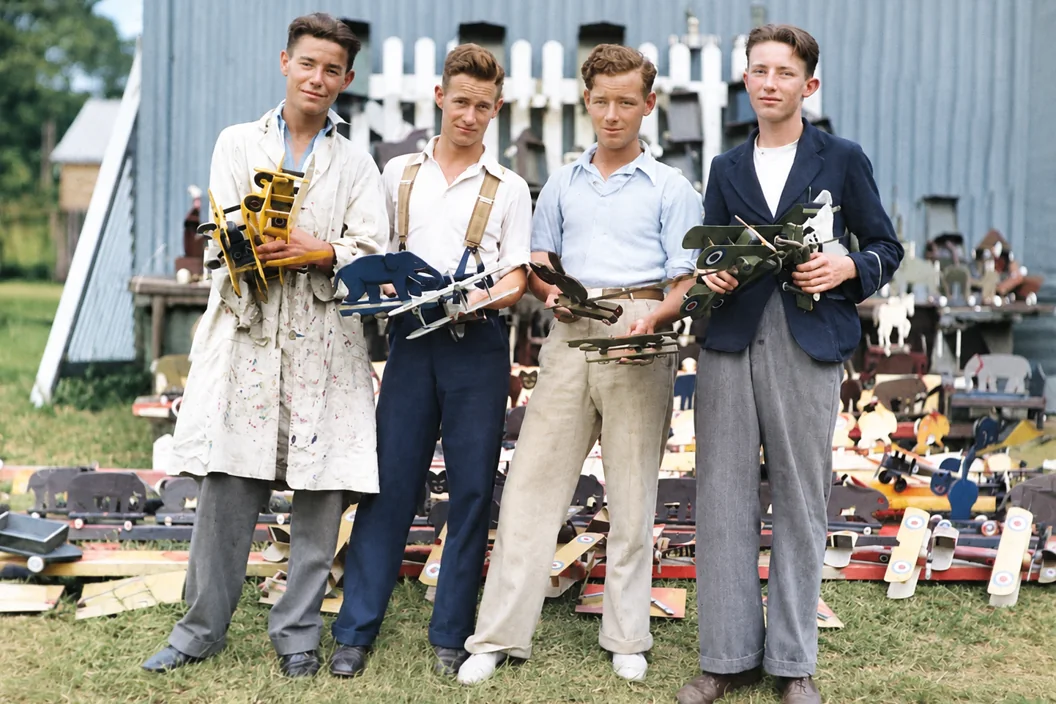
Cracks across a 1934 group photo
Long black cracks ran across four young men and their wooden toy planes. Photo restoration removed every line. Each face, shirt and toy stayed the same.
Damage
Cracks and scratches
Checked
All four faces, clothes and toys
Checked against the original
OriginalRestored
02
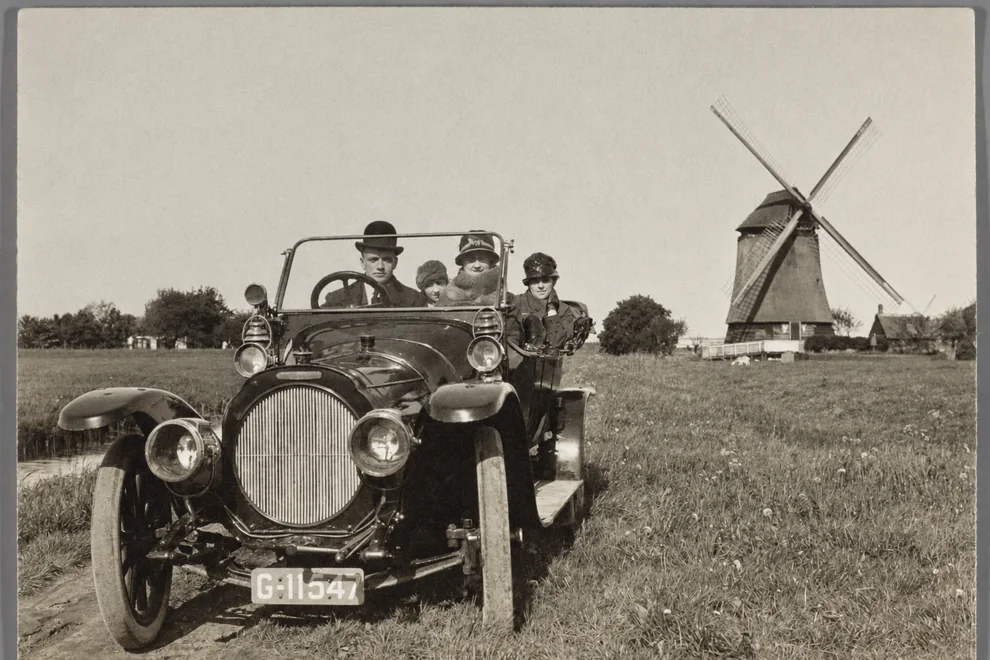
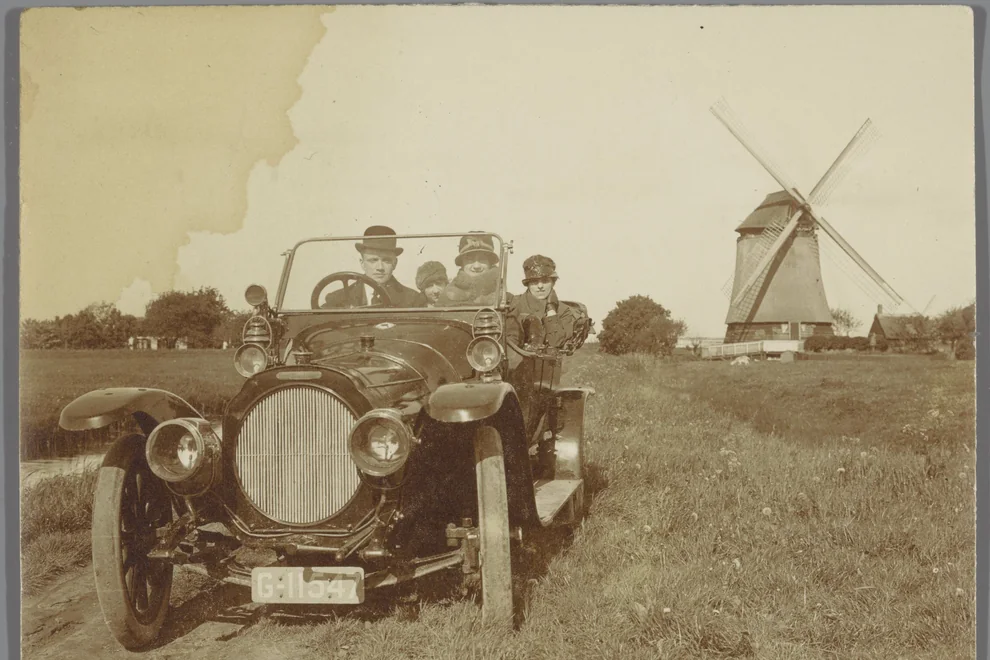
A water stain on a 1920s snapshot
A water stain spread across the sky, and the whole print had turned yellow. After photo restoration, the stain is gone and the tones are clean. The number plate still reads G-11547.
Damage
Water stain and yellowing
Checked
Faces, windmill and number plate
Checked against the original
OriginalRestored
03
Haze and dust on an 1860s portrait
A milky haze and specks of dust covered this early portrait. After photo restoration, contrast came back, while the hat badge, beard and uniform stayed true to the original.
Damage
Haze, dust and fading
Checked
Face, hat badge and buttons
Checked against the original
OriginalRestored
04
The same 1934 photo with Colorize on
Turn on Colorize, and photo restoration adds color as it repairs. The cracks are gone, and every face and pose still matches. The colors of the clothes and toys are AI guesses.
Damage
Cracks, black and white
Checked
All four faces, poses and toys
Checked against the original
OriginalRestored
Photos: public domain, via Wikimedia Commons (Sam Hood / State Library of NSW, Rijksmuseum, unknown 1860s photographers). Cropped to fit.
What can photo restoration fix?
Old prints wear out in the same few ways. Photo restoration repairs each of them and tries to leave the rest of the picture as it was.
Scratches and cracks
Photo restoration removes thin scratches and long crack lines across the print.
Creases and folds
Smooth out fold lines left by wallets, letters and albums.
Spots and dust
Clean away dark spots, white specks and dust across the whole print.
Stains and yellowing
Photo restoration lifts water stains and the yellow cast that old paper picks up.
Fading and haze
Photo restoration brings back contrast and depth to prints that have faded to gray or turned milky.
Blur and scan noise
Sharpen soft focus and reduce grain from low-quality scans and phone photos.
How to restore old photos in 3 steps
Photo restoration runs right in your browser. There is no app to install.
1
Scan or snap your photo
Scan the print, or take a phone photo of it. Upload a JPG, PNG or WEBP file up to 50 MB.
2
Pick size and color
Choose 1K, 2K or 4K. Turn on Colorize if you want color. 1K costs 1 credit, 2K costs 2, and 4K costs 3 on paid plans.
3
Restore and download
Click Restore Photo to start photo restoration. After about a minute, compare and download a PNG.
Tips for better photo restoration
The AI can only work with what it sees. A good scan makes a big difference to photo restoration.
Scan at 600 DPI if you can. More pixels give the AI more real detail.
Using a phone? Lay the print flat in soft daylight and avoid glare.
Take the photo out of its frame or sleeve. Glass adds glare and reflections.
Crop out the table and album page, but keep the photo's own border.
For photo restoration of group photos and small faces, choose 2K or 4K.
Check faces before you share
Photo restoration AI redraws the picture to repair it. In our tests, most faces stayed true. But on a tiny, badly damaged scan, a face can change.
After photo restoration, compare eyes, smiles and hairlines with the original.
Missing pieces, like a torn corner, are filled in from nearby detail. They are a best guess.
Colorize guesses colors. The AI cannot know the real color of a dress or a car.
Keep your original scan. The restored photo is a copy, not a replacement.
Photo restoration FAQs
Is this photo restoration free?
Yes, you can start photo restoration for free. You get up to 5 free credits a day, shared with our other cloud tools. A 1K result costs 1 credit and a 2K result costs 2. Free credits reset at 00:00 UTC. Device, network and service limits may lower the free amount. 4K output is for paid plans.
How do I restore an old photo online?
Scan the print or take a clear phone photo of it. Upload it at the top of this page, pick a size and click Restore Photo. After about a minute, drag the slider to compare, then download the PNG.
What damage can AI photo restoration fix?
It works best on scratches, cracks, creases, dust, spots, water stains, yellowing, fading and blur. Large missing areas, such as a torn-off corner, are harder. The AI fills them from nearby detail, so check those parts closely.
Will photo restoration change faces?
The AI is told to keep every face, expression and hairline the same, and not to beautify anyone. Most faces stay true, but very small or badly damaged scans can change. Always compare faces with the original.
Can it colorize black-and-white photos?
Yes, if you turn on Colorize. With it off, photo restoration adds no new colors, so black-and-white photos stay black and white. With it on, the AI adds natural colors. They are its best guess, not the real colors, and it may fill blank areas such as an empty sky. Colorize costs no extra credits.
Can I restore a photo of a photo?
Yes. A phone photo of a print works well for photo restoration. Lay the print flat, use soft daylight, and hold the phone straight above it. Avoid glare and shadows, since the AI may treat them as part of the picture.
What files can I upload?
For photo restoration, upload a JPG, PNG or WEBP image up to 50 MB. Results are PNG files. The result keeps your photo's shape, for any shape from 1:3 to 3:1.
Is my photo private?
When you click Restore Photo, your photo is uploaded to our cloud photo restoration service. Your photo and the result are stored so we can process it and you can download it. Read our privacy policy to learn more.
How is this different from the image unblur tool?
Our image unblur tool fixes blur in any image and has a free local mode. Photo restoration always uses our cloud AI with instructions made for old prints. It also removes scratches, creases, stains and fading.
What if something goes wrong?
If a photo restoration job fails, the credits it used are returned. You can leave the page while it runs and come back in the same browser to see the result.
Ready to restore your old photos?
Upload a scan or a phone photo and start photo restoration in a few clicks. Start free, with no account needed.